
Federal Bank Net Banking
Last Updated : April 3, 2025, 5:59 p.m.
Established on April 23, 1931, as Travancore Federal Bank by K.P. Hormis was renamed Federal Bank in 1949. It has grown into one of India’s leading banks, known for its customer-centric services and technological advancements.
- Presence: As of 2025, Federal Bank operates over 1,400 branches and 1,900+ ATMs/recyclers across India, with a strong presence in Kerala, Tamil Nadu, Karnataka, and Maharashtra.
- Vision: To be a customer-friendly bank with innovative financial solutions.
Features of Federal Bank Net Banking
Federal Bank’s FedNet offers a robust set of features for convenient online banking:
- View account balances, Federal bank mini-statements number , and detailed transaction history; download statements in PDF or Excel format.
- Transfer money within Federal Bank accounts or to other banks via NEFT, RTGS, IMPS, or UPI.
- Pay utility bills (electricity, water, gas), recharge mobile/DTH, and settle credit card dues.
- Order cheque books, demand drafts, block debit cards, or update personal details.
- Open and manage Fixed Deposits (FD), Recurring Deposits (RD), and apply for IPOs via ASBA (Application Supported by Blocked Amount).
- Easily View loan details, repay loans, and apply for new loans online.
- You can pay taxes (direct/indirect), check Form 26AS, recharge prepaid services, and manage credit card transactions.
Benefits of Federal Bank Net Banking
- Access banking services 24/7 from anywhere with an internet connection.
- Do transactions instantly without branch visits.
- Two-factor authentication (OTP or Smart ID) and 128-bit SSL encryption ensure safe banking.
- Free basic services like balance checks and intra-bank transfers; minimal fees for specific transactions.
- Manage multiple accounts, investments, and payments in one platform.
- Schedule payments, monitor finances, and customize transaction limits online.
Federal Bank Net Banking Registration Process
To register for FedNet:
- Visit the Website : Go to the official website >"Internet Banking" > "Login."
- Start Registration : Click "Sign Up" or "New User" > "Click Here to Register Online."
- Enter Details :
- Provide your 14-digit Federal Bank savings account number and verification code.
- Input your ATM/debit card number, PIN, and registered mobile number.
- OTP Verification : Enter the OTP sent to your registered mobile number.
- Set Credentials : Create a User ID, login password, and transaction password (must be different).
- Submit : Accept the terms, submit the form, and receive a confirmation SMS/email.
- Activation : Your net banking is activated instantly; log in to start using it.
Steps for Login Federal Bank Net Banking
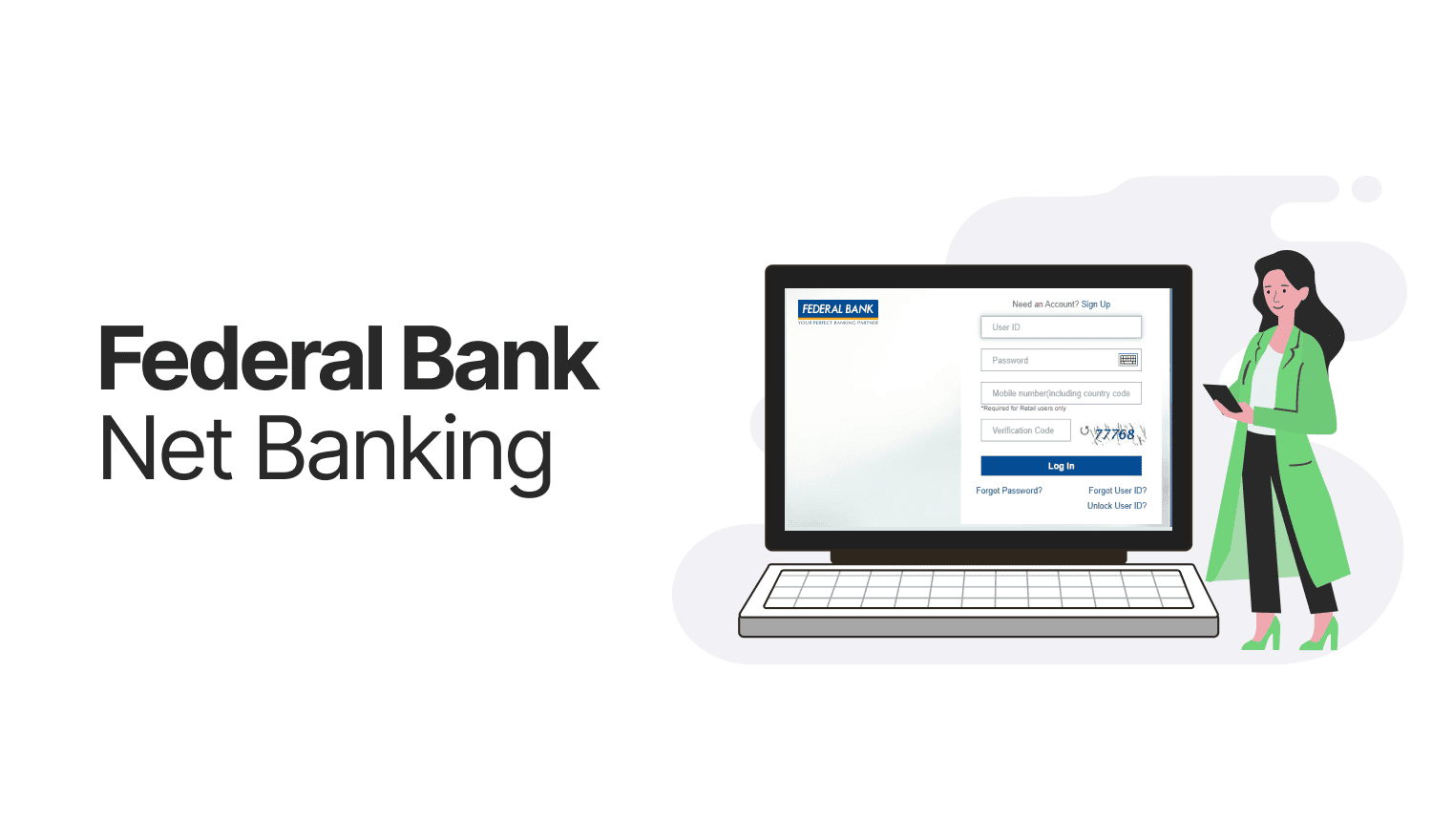
- Go to the Portal : Visit the official website > "Internet Banking" > "Login."
- Select Login Type : Choose "Personal Banking" (or "Corporate" if applicable).
- Enter Credentials :
- Input your User ID (Customer ID or personalized ID).
- Enter your login password.
- Authenticate : Click "Login" and enter the OTP sent to your registered mobile number (if prompted).
- Access Dashboard : Once verified, you’ll enter your FedNet account.
Note : Ensure the URL starts with "https://" for security.
How to Reset the Password of Federal Bank Net Banking?
If you forget your password:
- Visit Login Page : Go to the official website > "Login."
- Select Forgot Password : Click "Forgot Password?" on the login screen.
- Enter Details :
- Provide your User ID.
- Input your debit card number, PIN, expiry date, and verification code.
- Set New Password : Create a new login password and confirm it (optionally reset the transaction password too).
- Submit : After verification, your password is reset; use it to log in.
If you lack debit card access, contact customer care at 1800-425-1199 or visit a branch.
How to Transfer Money through Federal Bank Net Banking?
To transfer funds:
- Log In : Access FedNet using your User ID and password for a savings account.
- Navigate : Go to "Fund Transfer" or "Transactions" on the dashboard.
- Select Transfer Type :
- Within Federal Bank (own or third-party accounts).
- Other banks (NEFT, RTGS, IMPS).
- Add Beneficiary (if new) :
- Click "Add Beneficiary," and enter their account number, IFSC code, and name.
- Verify with OTP; activation is instant for Federal Bank accounts, delayed for others.
- Initiate Transfer :
- Choose the "From" account and beneficiary.
- Enter the amount and remarks.
- Authenticate : Input your transaction password and OTP.
- Confirm : Submit and note the transaction reference number.
How to Check Balance through Federal Bank Net Banking?
To check your account balance:
- Log In : Access FedNet at the official website with your User ID and password.
- Navigate : Click "Account Summary" or "Accounts" on the dashboard.
- View Balance : Select the account to see the current balance and recent transactions.
- Optional : Download a mini-statement or full statement for detailed records.
Federal Bank Net Banking Transaction Limit
Transaction limits depend on the transfer type and account settings (subject to change; confirm with the bank):
- IMPS :
- Per Transaction: Up to ₹2,00,000.
- Daily Limit: ₹2,00,000.
- NEFT :
- Per Transaction: No upper limit (₹50 minimum).
- Daily Limit: No cap, depends on account balance.
- RTGS :
- Per Transaction: ₹2,00,000 minimum; ₹10,00,000 default maximum (can be increased).
- Daily Limit: ₹10,00,000 (default, customizable).
- Own Account Transfers : Up to ₹2,00,000 per transaction (higher limits possible via request).
- Third-Party Federal Bank Transfers : ₹30,000 default; can be raised via FedNet.
- UPI : Up to ₹1,00,000 per transaction/day (10 transactions/day).
Charges :
- IMPS: Free up to ₹1,000; ₹2–₹15 for higher amounts.
- NEFT: Free up to ₹10,000; ₹2–₹25 beyond that.
- RTGS: ₹15–₹39 based on amount.
- UPI: Free.
Frequently Asked Questions (FAQs)
How do I register for Federal Bank Net Banking?
How can I retrieve my Federal Bank Net Banking User ID and Password?
How can I perform online transactions using Federal Bank's Net Banking?
Which is the official Federal Bank Net Banking app?
What are the benefits of a Federal Bank Account?
How do I unlock my FedNet User ID?
What is the User ID for FedNet?
How do I change my FedNet User ID?
Best Offers For You!
Account Balance Check by Bank
- SBI Balance Check
- PNB Balance Check
- Bank of Baroda Balance Check
- Canara Bank Balance Check
- YES BANK Balance Enquiry
- RBL Bank Balance Check
- Kotak Bank Balance Check
- ICICI Bank Balance Enquiry
- HDFC Bank Balance Check
- Federal Bank Balance Check
- Bandhan Bank Balance Check
- Axis Bank Balance Check
- AU Bank Balance Check
- Bank of Maharashtra Balance Check
- Indusind Bank Balance Check
- UCO Bank Balance Check
- Union Bank of India Balance Check
- Punjab & Sind Bank Balance Check
- Indian Overseas Bank Balance Check
- Central Bank of India Balance Check
- Indian Bank Balance Check
- IDFC First Bank Balance Check
- DCB Bank Balance Check
- Karur Vysya Bank Balance Check
- South Indian Bank Balance Check
Account Mini Statement by Bank
- SBI Mini Statement
- ICICI Bank Mini Statement
- Axis Bank Mini Statement
- PNB Mini Statement
- IDFC First Bank Mini Statement
- Indusind Bank Mini Statement
- Kotak Bank Mini Statement
- YES BANK Mini Statement
- Indian Bank Mini Statement
- Union Bank of India Mini Statement
- Bank of Maharashtra Mini Statement
- Central Bank of India Mini Statement
- Canara Bank Mini Statement
- Bank of Baroda Mini Statement
- RBL Bank Mini Statement
- Punjab & Sind Bank Mini Statement
- Indian Overseas Bank Mini Statement
- Federal Bank Mini Statement
- Bandhan Bank Mini Statement
- Karur Vysya Bank Mini Statement
- South Indian Bank Mini Statement
- DCB Bank Mini Statement
- IDBI Bank Mini Statement
- Bank of India Mini Statement
